Skip to content

Free, open source, Apache 2.0

One window for everything you’re running

A native macOS terminal for developers who always have five things going at once: an API, a bundler, a worker, a database shell, and somewhere a tail -f. Floating panes, colour-coded by environment, all in one window.

v0.9.1 · 3.9 MB · macOS 14 Sonoma or later · Apple silicon & Intel

brew install --cask tommihip/tap/termsie
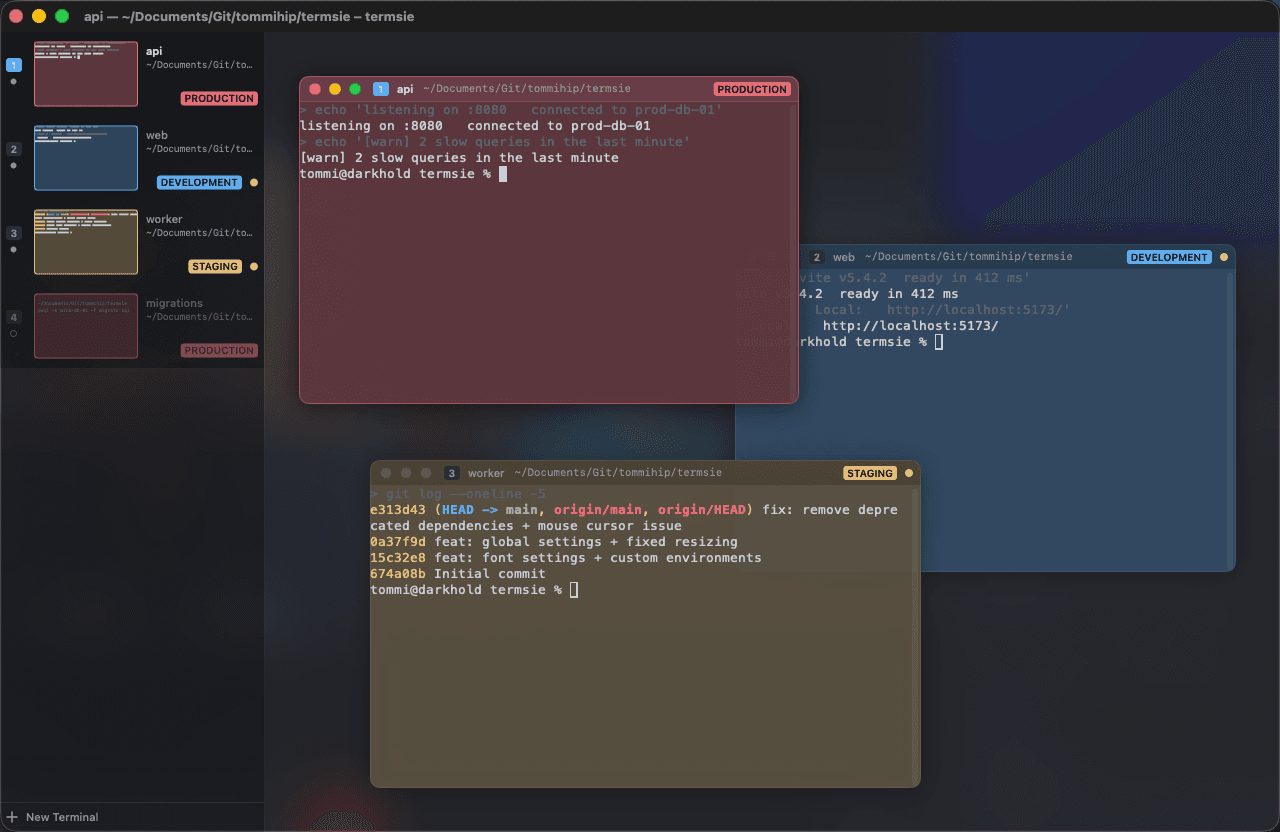
Termsie showing four floating terminals in one window, each tinted by its environment, with a sidebar listing every terminal and a live thumbnail of its screen
Four terminals, one window, colour-coded by environment. The sidebar shows a live thumbnail of each one.

The problem

Your terminal was designed for one thing at a time.

01

Six services, six identical windows

macOS gives you no help telling them apart. They hide behind each other, and the one that matters is always the one you just lost.

02

Tabs are worse

Whatever is failing is on a tab you cannot see. A red stack trace scrolling past behind a tab bar is a red stack trace you will find tomorrow.

03

Production looks exactly like local

Typing the wrong command into the wrong shell is a genuinely bad afternoon, and nothing on screen was ever going to stop you.

Termsie puts them all in one window, floating freely so you can arrange them the way the work actually looks, with a panel down the side listing every terminal you have, what it is doing, and a live picture of its screen. The one that just started printing red is the one you can see.

Features

Built for the way you actually work.

Floating terminals

Drag by the header, resize from any edge, overlap however you like. Edges snap to the window and to each other. Tile, cascade, or throw one to a half of the screen when you want order back.

A list that shows what is happening

Every terminal, open or closed, with a live thumbnail of its screen, its working directory, and what is running in it.

Environments

Tag a terminal production, staging, development, or anything you define. Its background, header, badge and list row all take that colour.

Saved terminals

Each terminal keeps a working folder and commands to run on open, like activating a virtualenv. Close it and it stays in the list; click to bring it back exactly as it was.

Its own command history

Press Up in a terminal and you get what you typed there. No changes to your dotfiles required.

Workspaces

Save a whole window of terminals to a file — folders, startup commands, environments, fonts, positions — and reopen the lot.

Genuinely native

Swift and AppKit, GPU text rendering through Metal, translucency and blur like Terminal.app. No Electron, no web view.

  • Native tabs
  • Broadcast input to every terminal
  • Scrollback search
  • Per-terminal font overrides
  • Live-reloading config file
  • Launch straight into a workspace

Environments

Production is never mistaken for local again.

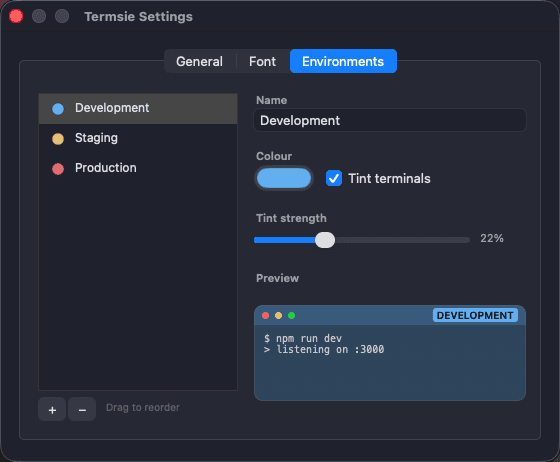
Tag any terminal with an environment and it takes that colour — the background, the header, the badge, and its row in the sidebar. Three ship by default. Add your own in Settings, with a name, a colour and a tint strength, and every open terminal repaints as you drag the slider.

Renaming an environment keeps its identity, so the terminals using it stay attached. Everything is written to a plain JSON config you can read, edit and commit.

Termsie's Settings window, showing the environment manager with a list of environments, a colour well and a tint-strength slider beside a live preview
developmentDevelopment

$ npm run dev

▲ ready on :3000

○ compiling /...

stagingStaging

$ psql -h staging

psql (16.2)

staging=# \dt

productionProduction

$ kubectl logs -f api

level=warn retrying

level=info 200 GET /v1

How it works

Some of this was more interesting than expected.

Three problems that turned out to have non-obvious answers. The reasoning is written down in full in the README, along with the tests that keep them honest.

01

Per-terminal history, without touching your dotfiles

Termsie generates a small startup directory per terminal and points ZDOTDIR at it. The generated files source your own .zshenv, .zprofile, .zshrc and .zlogin first, then pin HISTFILE afterwards — which is what makes it survive setups like oh-my-zsh that assign HISTFILE themselves.

02

Thumbnails that cost nothing

Sidebar thumbnails are drawn from each terminal's character buffer, not captured from the screen. The terminals render through Metal, where the usual view-snapshot APIs return blank — and screen capture would demand a permission prompt for a sidebar picture.

03

The pointer knows which terminal is in front

AppKit resolves cursor rectangles per view, without regard to what is drawn on top — so with overlapping terminals, one behind could claim the pointer over the header of the one in front.

Read the full write-up in the README

Keyboard

Your hands never have to leave the keyboard.

Terminals

New terminal
⌘D
New terminal, then tile
⌃⌘D
Duplicate terminal
⇧⌘D
Terminal settings
⌘I
Close / delete terminal
⌘W ⌘⌫

Arrange

Tile grid / cascade
⌥⌘= ⌥⌘\
Maximize terminal
⇧⌘↩
Throw to a half
⌃⌥⌘← → ↑ ↓
Focus left / right / up / down
⌥⌘← → ↑ ↓
Toggle the terminal list
⌃⌘S

Everything else

Broadcast input to all
⌥⌘I
Find / next / previous
⌘F ⌘G ⇧⌘G
Bigger / smaller text
⌘= ⌘-
Save workspace / as
⌘S ⇧⌘S
Jump to terminal 1–9
⌥⌘1 … ⌥⌘9

Install

Three ways in. All of them free.

Requires macOS 14 Sonoma or later. Universal build — Apple silicon and Intel. Signed and notarised by Apple, so it opens with an ordinary double click.

Recommended

Download the app

A disk image. Open it and drag Termsie to your Applications folder. That is the whole installation.

Termsie v0.9.1.dmg

3.9 MB · Universal

Homebrew

One command

Installs into /Applications and keeps itself current with brew upgrade.

brew install --cask tommihip/tap/termsie

Tap: tommihip/tap

Source

Build it yourself

Swift 5.9+ and the Xcode command line tools. Takes about a minute; the first build fetches SwiftTerm.

git clone https://github.com/tommihip/termsie.git
cd termsie && make run

Questions

The honest answers.

Is it really free?

Yes. Termsie is free, open source under the Apache 2.0 licence, and there is no paid tier, no account, and nothing to sign up for. It is a tool its author wanted to exist.

Does it phone home?

No. Termsie has no telemetry, no analytics and no network calls of its own. Your configuration and workspaces are plain JSON files in ~/.config/termsie, on your machine only.

How is this different from tmux, or from iTerm2's split panes?

Splits and tmux panes tile: they divide the window between them and each pane's size is a consequence of the others. Termsie's terminals float and overlap, so you can make the one you are watching large and leave the rest small in a corner. It also gives every terminal an identity — a name, a folder, startup commands, a colour — that survives closing it, which a split does not.

Do I have to change my dotfiles?

No. Per-terminal history and startup commands work through a generated shell shim that sources your own configuration first and then layers on top. If Termsie cannot recognise your shell with confidence, it leaves it completely untouched rather than guessing.

Which shells work?

zsh and bash get isolated history and startup commands; fish gets its own session history. Any other shell runs perfectly well — it just shares your normal history file.

Is it ready for daily use?

It is used daily by its author, but it is young and has not been through many hands yet. Expect rough edges and occasional breaking changes to the config format before 1.0. Bug reports with a crash log or the steps that produced the problem are extremely welcome.

Windows or Linux?

No. Termsie is Swift and AppKit with Metal text rendering, written against macOS specifically. A port would be a rewrite, not a build flag.

Something else? Open an issue.

Stop losing the window that matters.

Free, open source, and about a hundred megabytes lighter than the terminal you are probably using.